On February 11, Atlassian finally announced the release of Jira 8.0!
Read More
Atlassian|how to|JIRA Digital Transformation
How much of your day as a product manager or project lead is spent acting as a human bridge between tools? You close a deal in a CRM, brainstorm on a digital whiteboard, dump raw feedback into a spreadsheet, and then comes the inevitable, soul-crushing tax of manually translating it all into Jira tickets.
If you have read anything about the Model Context Protocol (MCP) recently, you would think it is a shiny new toy built exclusively for software engineers using AI coding assistants. Almost every tutorial follows the same script: developer opens Cursor or VS Code, connects Jira via MCP, starts building a feature. Full stop.
That narrow framing misses the forest for the trees.
MCP is not a developer feature. It is the missing connective tissue that turns your fragmented enterprise software stack (Jira, Confluence, your CRM, your whiteboards, your spreadsheets) into a single, cohesive project brain. This post is for cross-functional product teams, project managers, and knowledge workers who want AI efficiency without Jira data silos.
What Is Atlassian MCP? A Jargon-Free Explanation
Think of MCP as a universal adapter plug for AI assistants.
Before, if you wanted ChatGPT or Claude to act on your Jira data, you were stuck copy-pasting content in and results back out. That is manual, lossy, and slow. The Model Context Protocol (MCP) standardizes how AI models connect to external tools (Jira, Confluence, GitHub, Figma, your CRM) through a common interface. Once a connection is configured, the AI can search, read, create, and update data across those systems in response to a plain-language prompt.
Atlassian ships its own official version: the Atlassian Rovo MCP Server. It is hosted by Atlassian, secured with OAuth, and requires no infrastructure to maintain on your side. It exposes roughly 25 discrete "tools" across Jira, Confluence, Compass, Jira Service Management, and Bitbucket. Each tool is a named, permissioned action the AI is allowed to perform, such as "search Jira issues," "create a Confluence page," or "get the status of a sprint."
One key detail: MCP respects your existing permissions. The AI can only see and act on data your user account is already allowed to access. It is not a bypass; it is a new interface to the same access controls you already have.
Your Atlassian administrator needs to enable the Rovo MCP Server and configure which AI clients and data scopes are permitted. That is a one-time setup. After that, non-engineers interact entirely through natural language chat.
And just like you can use Atlassian's MCP server in other tools, you can flip that and use a growing gallery of third-party MCP connectors (Amplitude, Figma, GitHub, Intercom, New Relic, Box, and others) in Rovo. So once you are connected, those tools become part of the same AI context.
Three Cross-Functional Workflows Worth Piloting Today
1. Mapping the Blast Radius of a Delayed Epic
Changing a single requirement in a cross-platform environment creates a hidden domino effect. A two-week delay on a core user-auth Epic does not just affect engineering. It blocks UI screens in Figma, stalls API work in the repository, and makes your Confluence release notes stale. Figuring out what breaks usually means scheduling three alignment meetings and chasing down four teams over two days.
With MCP bridging Jira, Confluence, Figma, and GitHub, you can skip the meetings.
The prompt: "Map the blast radius of delaying the user-auth Epic by two weeks. What is blocked in Figma, what is sitting idle in the repo, and which Confluence pages need to be updated?"
The AI cross-references the connected MCP servers and returns a specific list: which mobile UI screens are now blocked, which web API endpoints will sit idle, which documentation needs rewriting. It does not guess. It reads the actual live data from each tool and synthesizes a full dependency map in seconds.
This is especially valuable for product owners managing multiple concurrent streams. Instead of running weekly sync calls to surface dependencies, you ask once and get the answer immediately. Your team still has to be disciplined and have solid documentation in place; otherwise, AI will drown in outdated information.
2. Turning Retro Sticky Notes Into a Triaged Backlog
Post-mortems and retro sessions on infinite canvases (Miro, FigJam, and similar tools) are great for collaboration. The action items that come out of them are not. Nobody wants to manually copy 40 sticky notes into individual Jira tickets after a two-hour session, so most of them quietly die on the board.
This is one of the highest-friction, lowest-value tasks in any product team's week. Connecting your whiteboard data to Jira via MCP removes it entirely.
The prompt: "Group the constructive feedback sticky notes from our Q2 Retro board, cross-reference them with our active Jira backlog to avoid duplicates, and log the four highest-priority process improvements as tasks in our engineering sprint project."
The AI reads the canvas data, reasons across it, checks your existing Jira backlog, and creates the tickets. It handles deduplication: if a theme from the retro already has an open issue, it adds context rather than creating a duplicate. Two hours of whiteboard collaboration becomes a groomed backlog entry in minutes, without you touching Jira's UI.
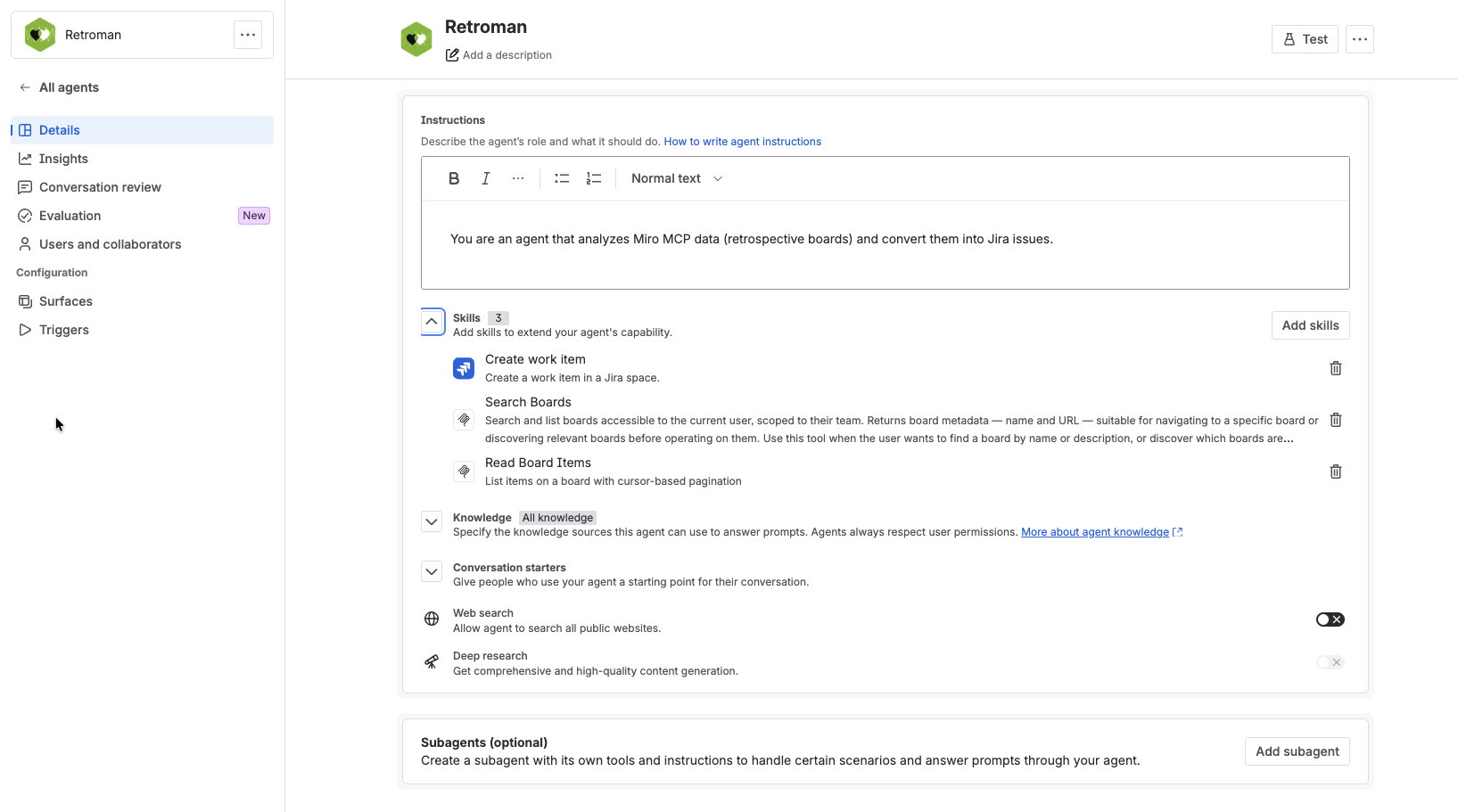
To set this up you would need to:
- Add Miro MCP in Atlassian Studio
- Create an Agent in the Studio with a custom prompt, instructing the agent to use Miro MCP and Jira to analyze retrospective boards and create work items.
- Don’t forget to add the skills to the agent: create work items, search boards, and read board items.
- Start a new chat with Rovo, select your agent and ask away!
3. Processing Raw Spreadsheet Feedback Into Structured Bug Reports
Business analysts and beta testers love spreadsheets for raw data dumps. Two hundred rows of unstructured feedback from a beta test is useful information, but triaging it line by line into clean, properly structured Jira bug reports is a weekend's worth of work that rarely gets done well, if at all.
MCP gives your AI workspace the ability to reason across that spreadsheet data against your live Jira component structure simultaneously.
The prompt: "Correlate these 200 rows of raw beta feedback with our existing Jira component structure. If a bug matches an existing open issue, add a comment with the user's quote. If it is new and mentioned more than three times, create a bug ticket pre-populated with the steps to reproduce from column D."
The result: a fully triaged, deduplication-aware batch of Jira updates, without you reading a single row manually. More importantly, the tickets are created against your actual component architecture, not guessed from memory.
This one is a little more complex to set up, as there is no official MCP server provided by Google (for Google Sheets) or Microsoft (for Excel). Community-built MCP servers exist for both, however, and you can run those locally with a little bit of effort and help from an engineer on your team.
What Atlassian MCP Does Not Do (Honest About the Gaps)
MCP standardizes how AI models call tools. It does not provide data synchronization, background jobs, or real-time event triggers. A few things to calibrate before you set expectations with your team:
It is a conversation interface, not a pipeline. If your goal is to keep Jira and your CRM in perfect, continuous sync, you still need an integration platform for that. MCP helps you reason about divergences and suggest updates. It is not an ETL tool.
Tool coverage depends on available MCP servers. Your ability to bridge Jira with other tools depends on whether those tools have MCP servers. Atlassian's gallery covers many popular SaaS products, but not everything. For missing tools, someone still needs to build a custom server. Spreadsheet scenario above is a great example of this.
Event-driven automation is not yet turnkey. If you want "when an issue moves to Done, automatically create a Confluence changelog entry," that still requires a workflow engine such as Atlassian’s Automations, Zapier, or similar. MCP can execute that workflow on demand, but it will not trigger it automatically in the background. Not yet.
Bulk write operations need human review. AI clients that support a "plan then execute" pattern (showing you what changes they plan to make before doing anything) are significantly safer for non-engineers. Use that pattern by default.
How to Get Started Without Breaking Anything
Step 1: Talk to Your Atlassian Administrator
The Rovo MCP Server needs to be enabled at the organizational level. Ask your admin to configure domain allowlists (these control which AI clients are permitted to connect) and to scope tool permissions appropriately. For a first pilot, read-only access to Jira and Confluence is plenty. If you want to connect other tools to Jira, then you’ll need to set them up in the Atlassian Studio too, before they are available to Rovo agents.
Step 2: Start With the Lowest-Risk Workflow First
Natural-language querying is the easiest place to begin because it is read-only. Before writing a single ticket via AI, spend a week using MCP to query and summarize: "Show me all open blockers for Release X," "List all tickets assigned to me that have not been updated in two weeks," "Summarize the Confluence spec for this Epic." This builds your team's intuition for what prompt patterns work, without any risk of data changes.
Step 3: Use Workspace Prompts to Anchor Context
Rather than starting every conversation from scratch, define scope once and let the assistant carry it: "In this chat, we are working on the Q3 launch. Use Jira project LAUNCH and Confluence space Marketing/Q3." Consistently anchored prompts produce more reliable, more specific results than open-ended queries. Remember to start a new chat for each new task to avoid polluting the context window.
Step 4: Encode What Works Into Rovo Agents
Once you have identified two or three prompt patterns your team uses repeatedly (weekly status reports, retro-to-ticket workflows, beta feedback triage), work with a builder or technical lead to encode them into Rovo agents. Agents let non-engineers invoke a consistent, well-tested workflow by name rather than re-prompting from scratch every time.
The Frame Shift That Matters
Jira has always been the place where work lives. The problem is that the work does not start in Jira. It starts in whiteboards, spreadsheets, CRMs, feedback forms, and customer calls. Getting it into Jira has always required a human to act as translator.
MCP does not replace that translation. It automates it.
Stop treating MCP as an engineering utility. Start using it as the operational plumbing that connects your team's disparate tools directly to your source of truth, and let the AI do the tab-switching for you.
The practical first step: talk to your Atlassian administrator about enabling the Rovo MCP Server domain allowlists, pick one of the three workflows above, and pilot it this week.
Idalko is an Atlassian Platinum Solution Partner specializing in the Atlassian ecosystem and digital transformation consulting. Need help enabling Atlassian Rovo MCP for your organization? Get in touch.
Frequently Asked Questions
What is Atlassian MCP? The Atlassian Rovo MCP Server is Atlassian's implementation of the Model Context Protocol standard. It allows AI assistants such as Claude, ChatGPT, or Cursor to securely connect to Jira and Confluence using OAuth authentication, enabling them to search, read, create, and update project data through natural-language prompts.
Do you need to be a developer to use Atlassian MCP? No. Once your Atlassian administrator has enabled the Rovo MCP Server, non-technical users (product managers, business analysts, project leads) interact entirely through chat. No code required.
Is the Atlassian Rovo MCP Server secure? Yes. It uses OAuth for authentication and respects your existing Jira and Confluence permissions. The AI can only access data your user account is already authorized to see.
Which tools can connect to Jira via MCP? Any tool that supports MCP (Codex, Claude Code and Claude Cowork, and the like).
Which tools can be connected to Rovo in Jira or Confluence? Atlassian's Rovo gallery currently includes connectors for tools such as Figma, GitHub, Amplitude, Intercom, New Relic, and Box, among others. Coverage is expanding. If the tool you are looking for is not in the gallery, chances are it already supports MCP and all you need is to create a new MCP server connector in Atlassian Studio, which is what we did for Miro scenario above.
What is the difference between MCP and a traditional Jira integration? Traditional integrations (via Zapier, Make, or native webhooks) run as automated pipelines triggered by events. MCP is a conversational interface: you prompt an AI, it calls the relevant tools on your behalf, and returns a result. MCP is better for complex, ad-hoc reasoning across multiple data sources; traditional integrations are better for recurring, event-driven synchronization.